
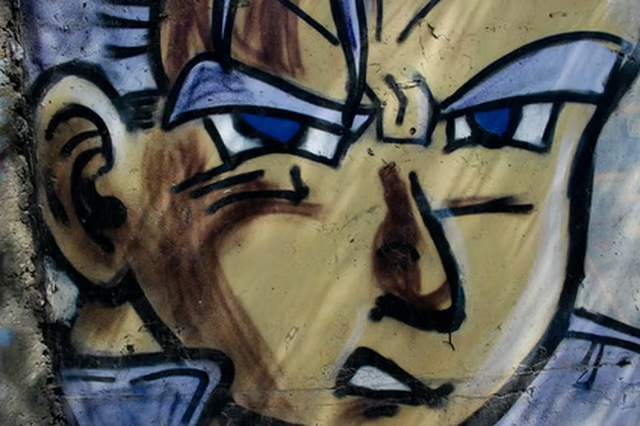


There are various way to create a cartoon manga look, but for all of the effects, you’ll need high-quality video footage or images. Your video or image exposure should be of high contrast between the subject and background with even lighting and little shadows. Your main subject should be clearly recognizable. Manga anime cartoon style uses screen tones to represent the characters' emotions. This is similar to close-up shots in film and TV when the background gets cut out. Add screen tones to your manga, such as a beam of light--when the character suddenly “gets it,” like a light bulb going off in western images.
Preparations
-
Decide what type of file you would like to convert: a video file or an image file.
-
Download and open a video or image editing program that includes effects; examples include Photoshop and After Effects.
-
Import your files into your software program.
-
Adjust your colors, if necessary, through the Color Balance and Brightness/Contrast options.
Poster Edges
-
Add a Gaussian Blur to soften the details.
-
Add a Poster Edges effect.
-
Adjust your setting as needed. Save your file.
Dark Stroke
-
Add a Dark Stroke.
-
Adjust the intensity as needed.
-
Save your file.
Cartoon
-
Add a Cartoon effect.
-
Click on "Edges" for a hand-drawn look, or "Fill" for a painterly look.
-
Adjust as needed. Save your file.
Online
-
Navigate to an online cartoon effect software such as Befunky, intoCartoon or KusoCartoon (see Resources).
-
Choose a cartoon or manga style and then upload your image.
-
Wait for it to convert to manga cartoon style.
-
Adjust as needed. Save your file.